Important Information
Before registering for our account, please read our Privacy Policy
Once you register for our account and use our services, we will assume that you have agreed to our Privacy Policy!
The SIT-Minecraft account is an independent system and has no direct association with the Shanghai Institute of Technology Unified Authentication System account
Changing the password of either party will not affect the password of the other party
Welcome to the Minecraft Club of Shanghai Institute of Technology! This tutorial is designed to guide complete beginners through downloading the Axolotl Launcher, registering a SIT-Minecraft account on our user center, and joining the server.
If you encounter any unsolvable issues during the process, you can seek help in our QQ group (623697015)!
If you are not member of our school, you can go to MUA User Center to register. You can verify your identity using your educational institution's email, CHSI, or other methods. For detailed instructions, please check the guide page provided by the MUA User Center.
Download the Axolotl Launcher
The Axolotl Launcher is a free, open-source, ad-free Minecraft Java Edition launcher developed by our club based on Axolotl Launcher. It is intended solely for accessing our club's game server. Currently, only a Windows version is available.
After downloading, double-click to open it. You may receive a security warning from Windows Defender. Click “More info” and select “Run anyway.”
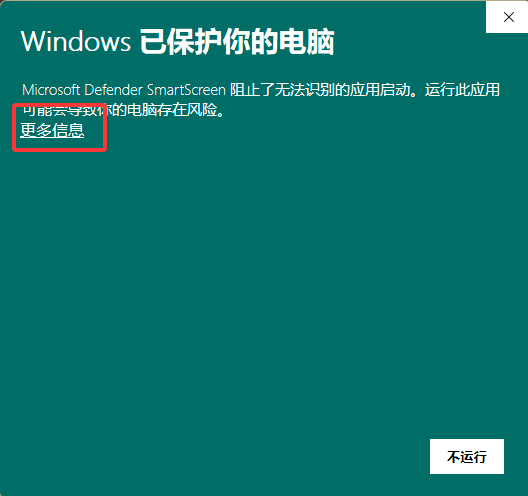
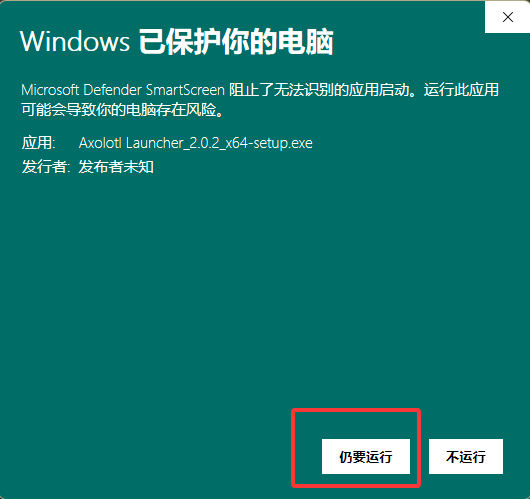
Follow the installation prompts to complete the installation. Once installed, run the Axolotl Launcher.
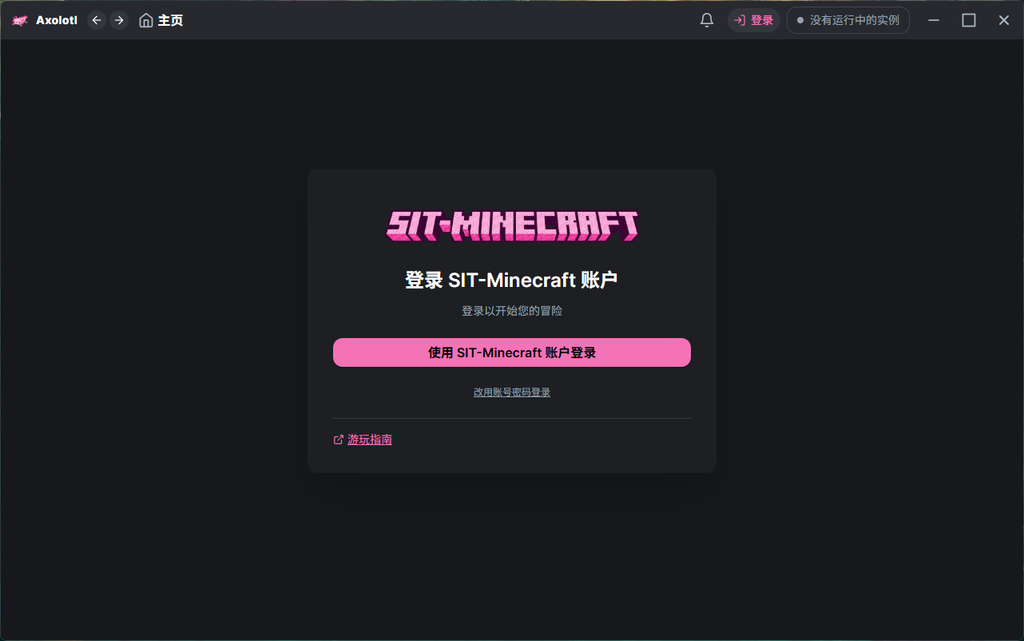
Click the “Log in with SIT-Minecraft account” button to enter the login authorization process.
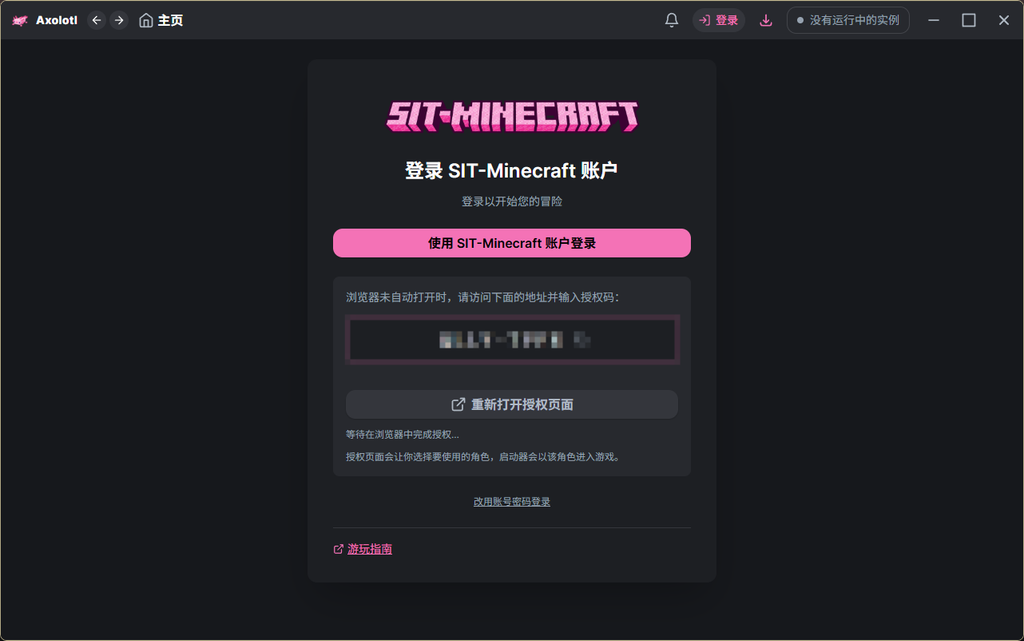
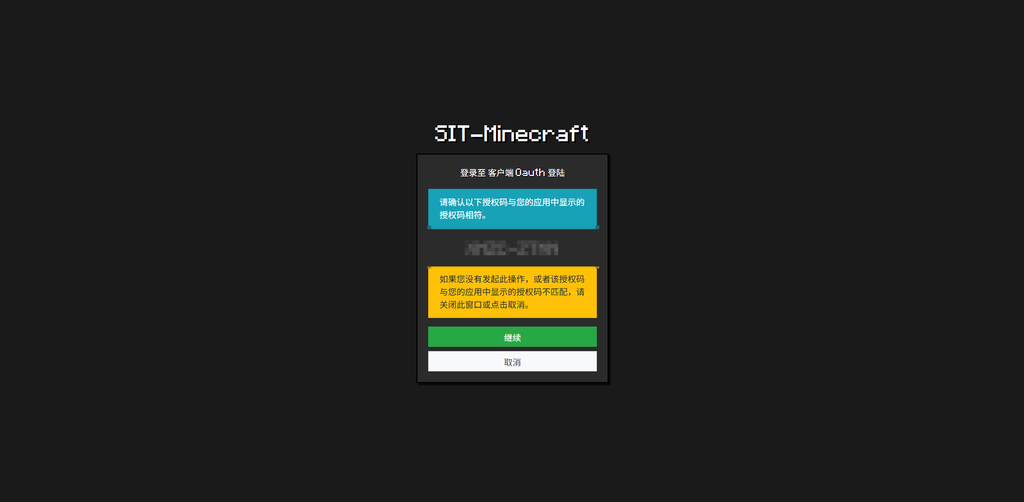
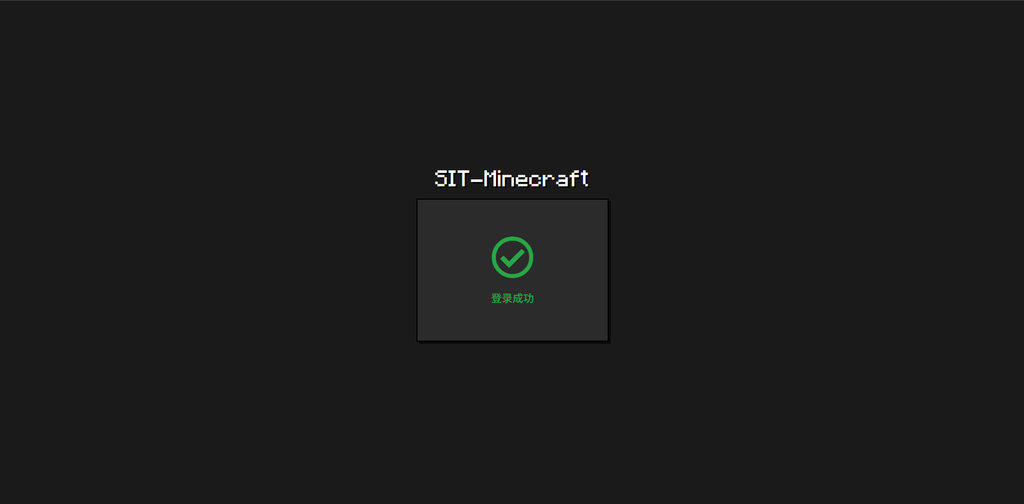
Continue the process in your browser. If the browser does not open automatically, you can click “Reopen authorization page.” Follow the prompts to complete the authorization process and proceed to the login page.
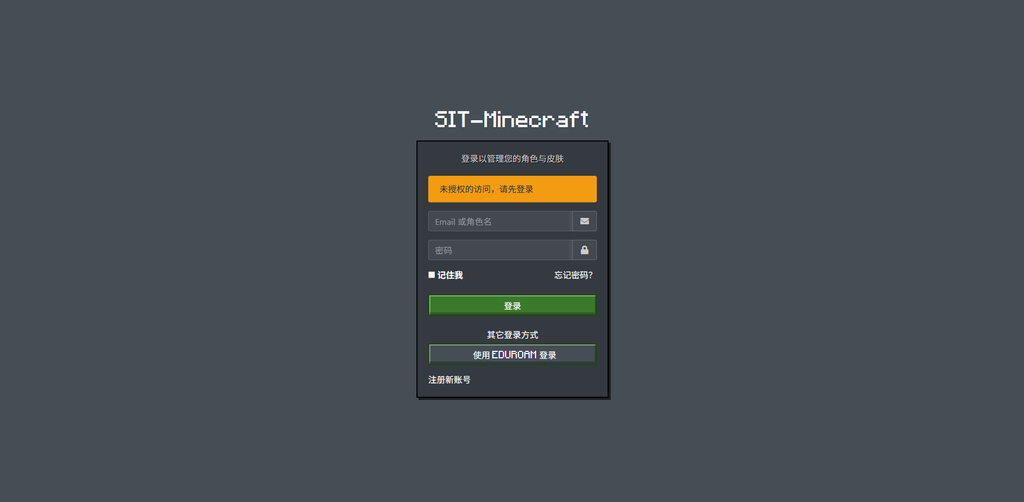
Click “Log in with Eduroam” and log in directly using your student ID and OA password.
*OA: here it refers to Shanghai Institute of Technology Information PortalNew students need to log in with the initial password and change the initial password before they can pass authentication.
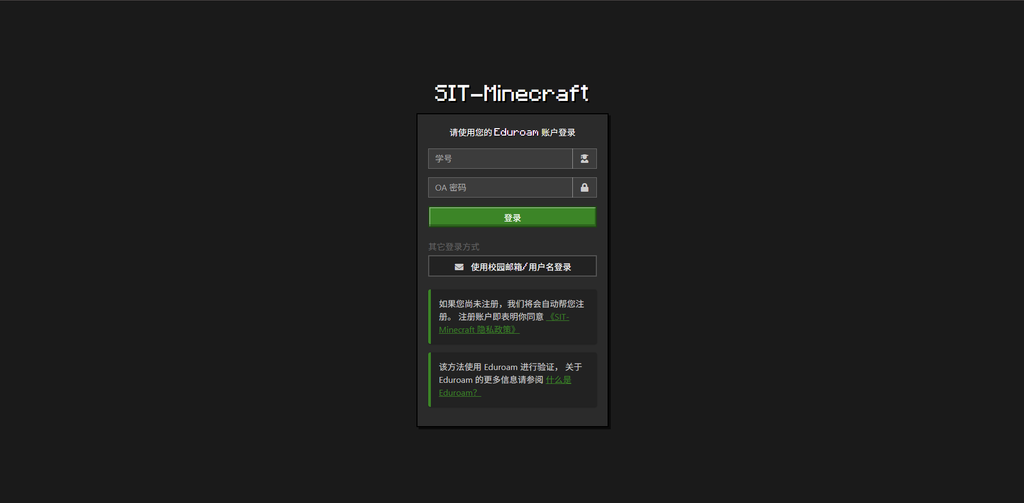
For registrations made this way, we will use your OA password at the time of this registration as the login password for your SIT-Minecraft game account, stored after irreversible one-way encryption.
Continue completing the authorization process. On first creation, you will be prompted that you have no character and need to create one.
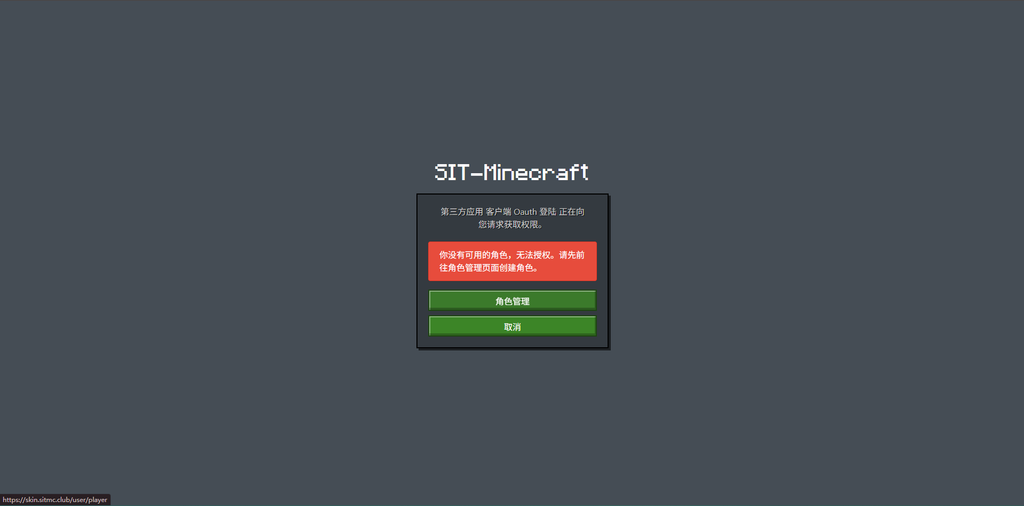
What you enter here will serve as your game ID. Please use a combination of English letters, numbers, and underscores.
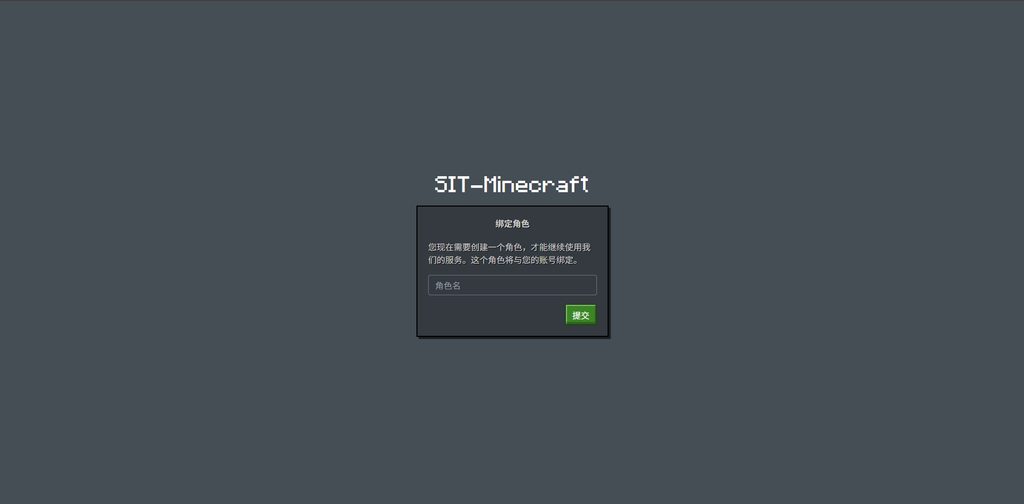
If your registration takes longer than five minutes, the authorization status will expire. You simply need to return to the launcher and initiate the authorization again.
Select the server you want to play on and click Start Game. The launcher will automatically install the corresponding game version, launch the game, and connect you to the server.
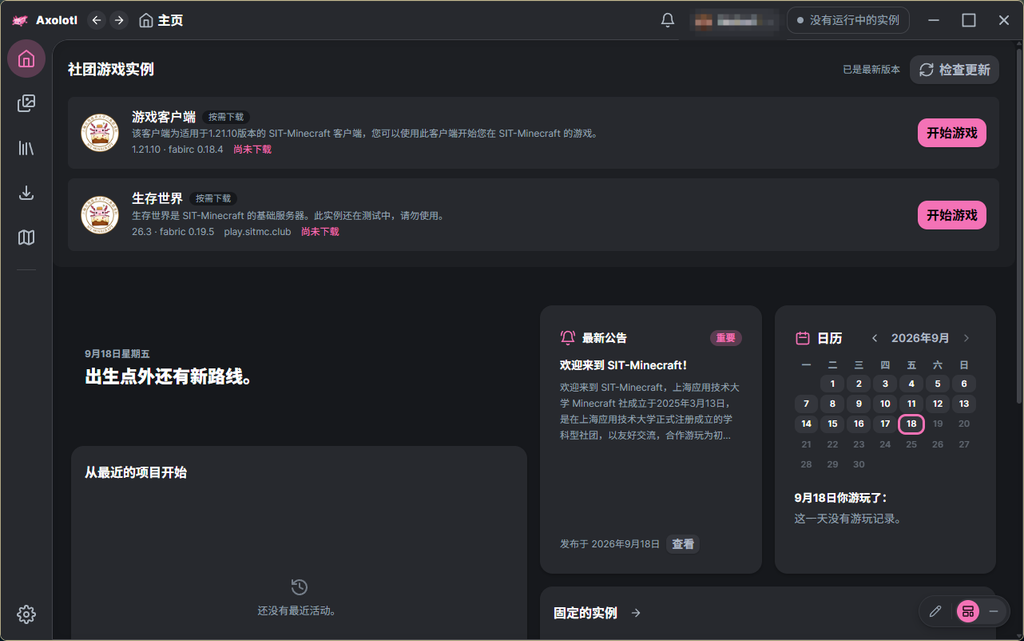
At this point, you have completed the registration for SIT-Minecraft and successfully entered the game. Enjoy our services and begin your adventure!
Other Help
I am not using Windows
Unfortunately, our client is only available for Windows. If you are using another operating system, please download the HMCL launcher for your corresponding system and find configuration instructions on your own.
I use PCL2/HMCL
These launchers can all connect to our game, but you will need to find and learn the configuration methods yourself.

I wish to use other third-party clients or the official launcher.
The configuration method for other clients is similar. You can configure your third-party launcher following the same steps. In fact, our server supports all mainstream versions from 1.8.X to 1.21.X. However, our dedicated client offers special support for certain server features.
The official launcher does not yet support logging in with SIT-Minecraft accounts.
How can I personalize my character?
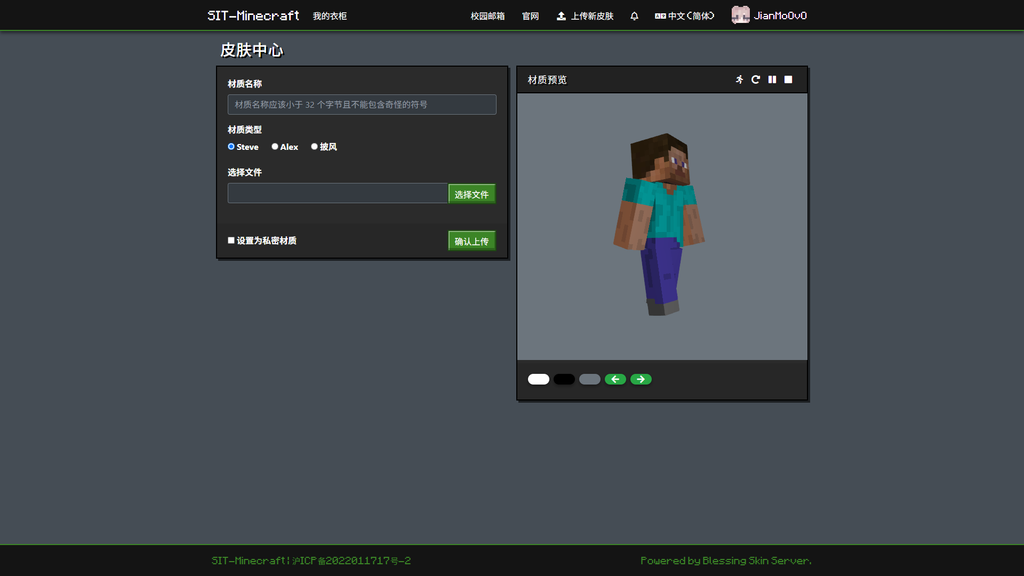
Log in to the user center, click "My Wardrobe," and select "Upload Texture."
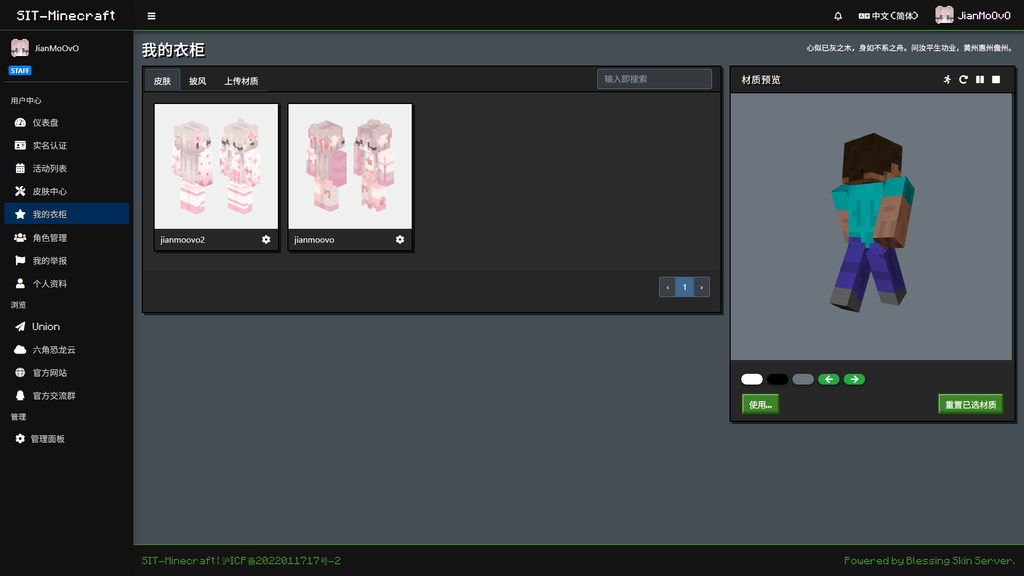
Upload the texture you wish to use and correctly select the model. You can preview the texture on the right side.
Then, return to your wardrobe, select the texture you just uploaded, click "Use," and apply it to your character.
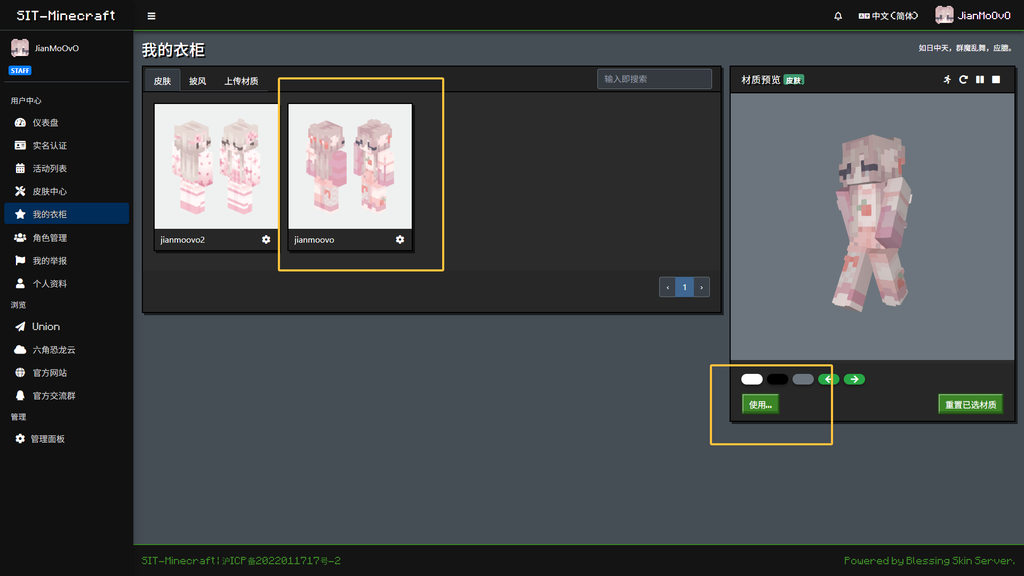
Re-enter the game, and you should now be able to see the applied texture correctly.
Special note: Do not upload textures related to illegal content, violence, gore, or pornography. Also, please be mindful of the copyright of the textures you use.
How can I change my in-game character name?
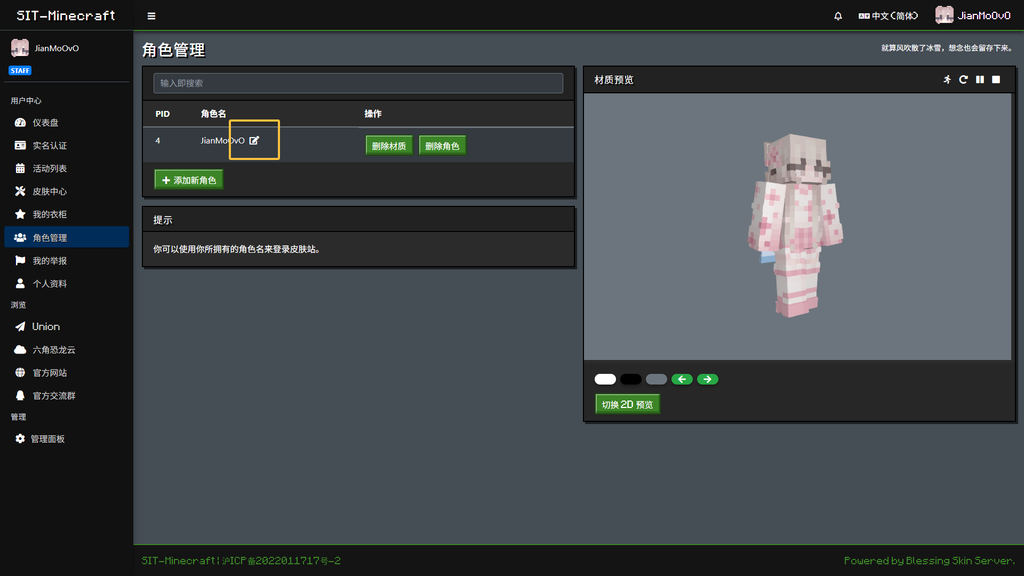
Select "Character Management" and click the icon next to the character name to make changes.
How can I delete my account / change my game password?
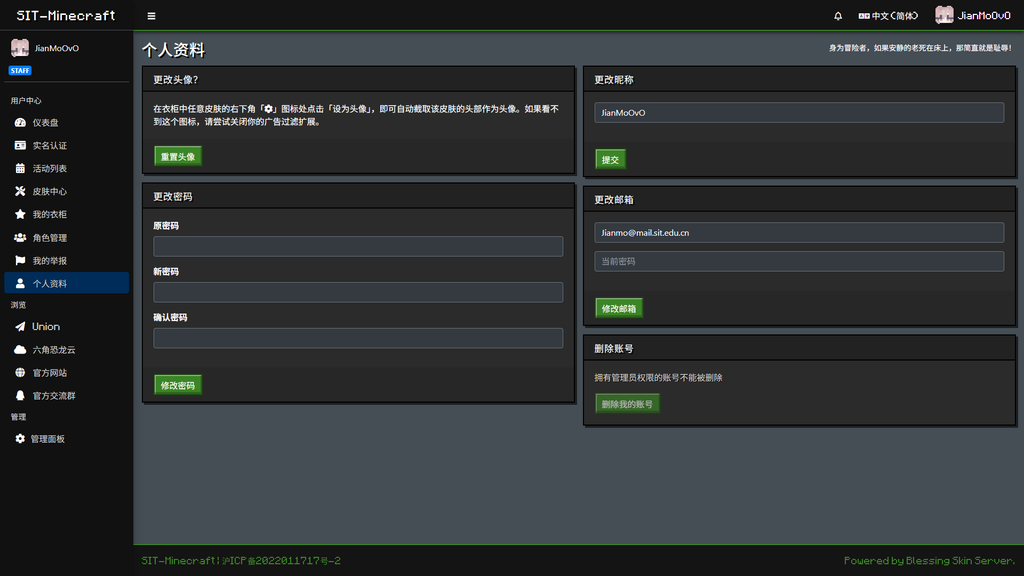
Click "Personal Profile." Here, you can manage your game password, modify your nickname, or delete your account.
Special note: Changing the password here does not affect your OA password, nor does it affect logging into your account using your OA credentials. The password here is solely for launching the game.
Changing the nickname here also does not affect your in-game character name.
After changing your email, you will need to re-verify your account, and only email verification will be available. If you use an OA account to log in at this point, the system will create a new account for you. Please proceed with caution.
After clicking "Delete Account" and verifying your password, the action is irreversible, with no backups. All data in the user center and in-game will be completely cleared and cannot be recovered. Please proceed with caution.
Register a SIT-Minecraft account using your campus email
Alternatively, you can also use a campus email with the suffix @mail.sit.edu.cn for registration..
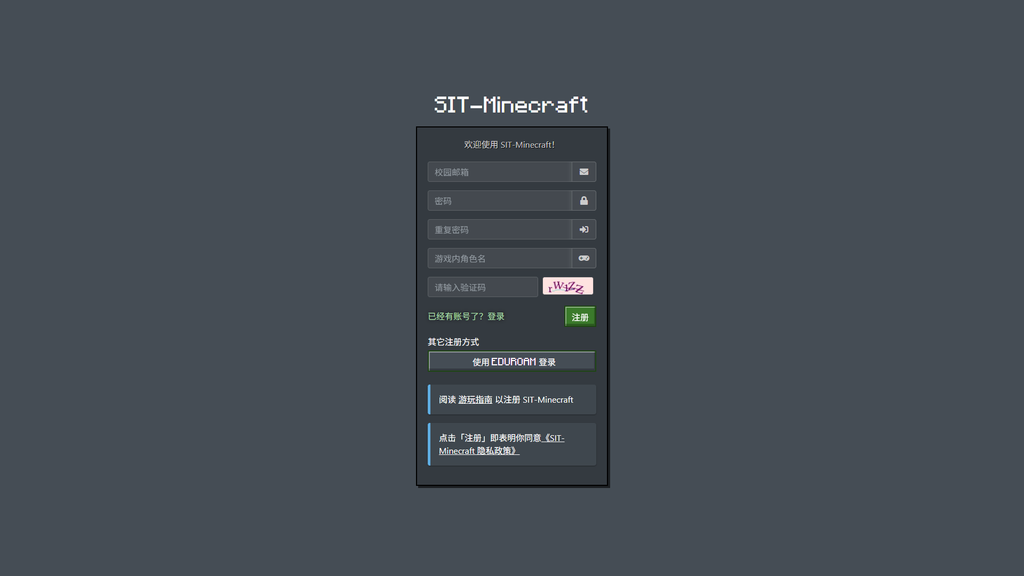
On the On the Registration page, fill in the required information as prompted.
Generally, the email address should be 学号@mail.sit.edu.cn(例:2000000000@mail.sit.edu.cn)
The in-game username can only consist of a combination of uppercase/lowercase English letters, underscores, and numbers. After clicking Register, we will send a verification email to your campus mailbox.
1.2.2 Click the verification link in the campus email
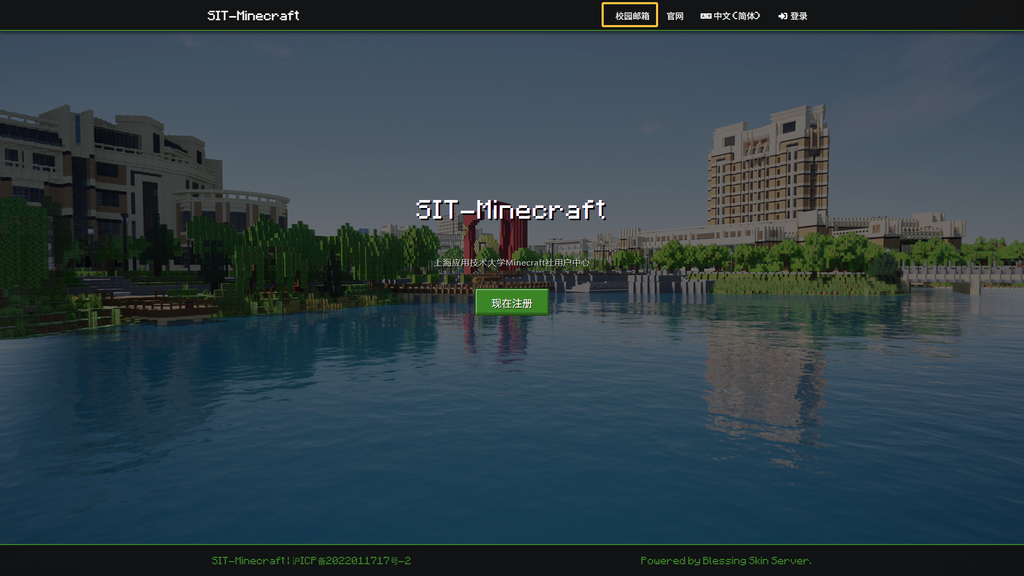
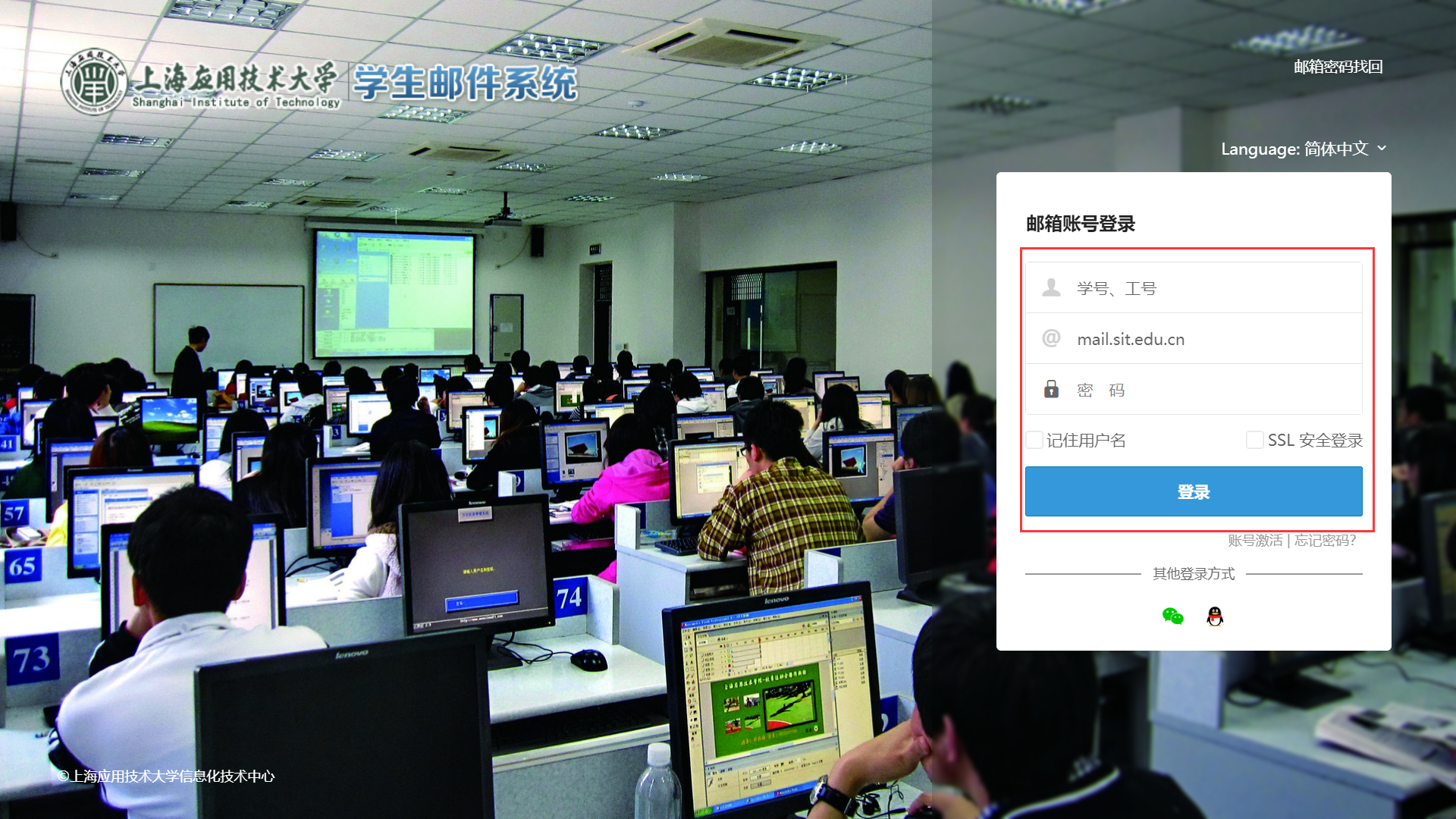
Our university's campus email is enabled by default for enrolled students. The account ishttp://stu.mail.sit.edu.cn/coremail/index.jsp?nodetect=true
your student ID by default, and the password is the initial OA password by default(can be found in the freshman handbook), which is:Class of 2021
For cohorts before 2021.Classes of 2022, 2023, 2024: sit@six-digit number (the 7th to 2nd last digits of the ID card number)
For cohorts after 2022: sit@six digits (the 7th to 2nd digits from the end of your ID card number)
Special reminder: If you are a new student, your campus email will generally be activated within three months after enrollment. Please pay attention to the notices issued by the Information Technology Center. We strongly recommend that you use Eduroam for registration.
After successful login, you will receive an email containing a verification link.
Please carefully identify the sender's email address. Our emails are typically sent from sitminecraft@163.com or mail@sitmc.club.
If you are not affiliated with our university, you can register on the.
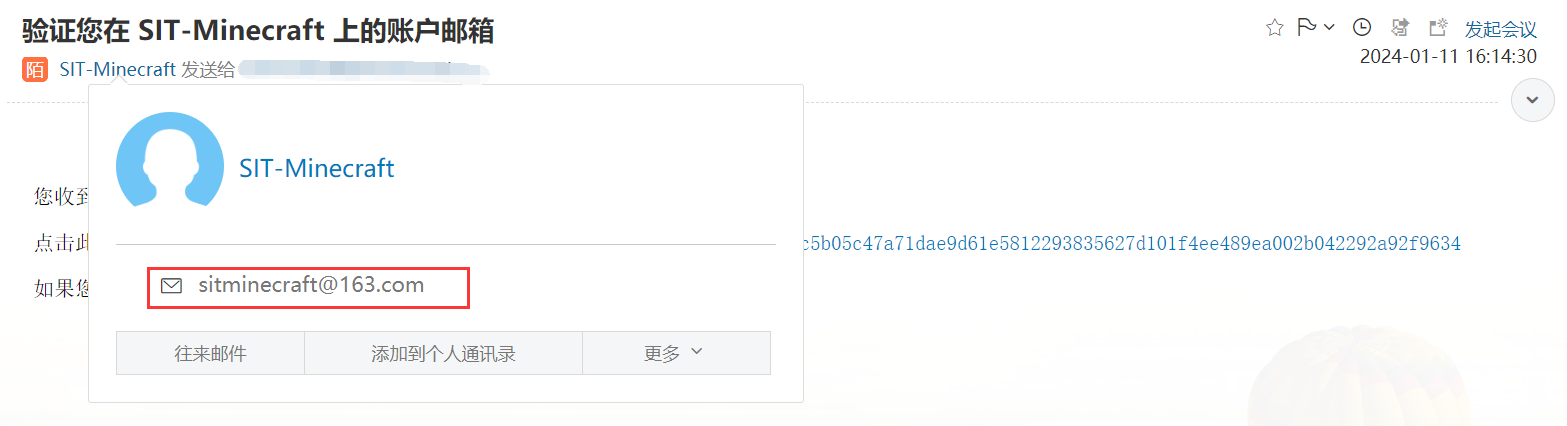
Click the verification link to complete registration.